반응형
다운로드를 받았으니 Project 및 Report를 생성해보겠다.
나는 최종에는 Jaspersoft Studio (디자인) + JasperReports 6.x (출력) 까지 목표로 하고있다.
InteliJ 툴을 자주 사용하는 나이다..Jaspersoft Studio 자체가 Eclipse 기반이라 익숙하기도 한거같다.
1. 해당 이미지와 같은 토글 버튼 클릭 후 Project 클릭 or File -> New -> Project 클릭


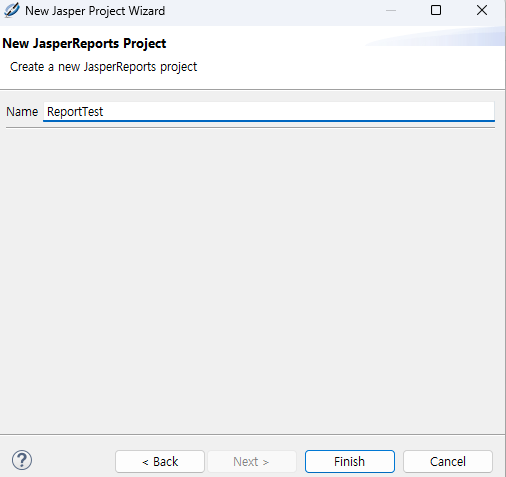
2. 프로젝트 생성 (Name 입력후 Finish 클릭)

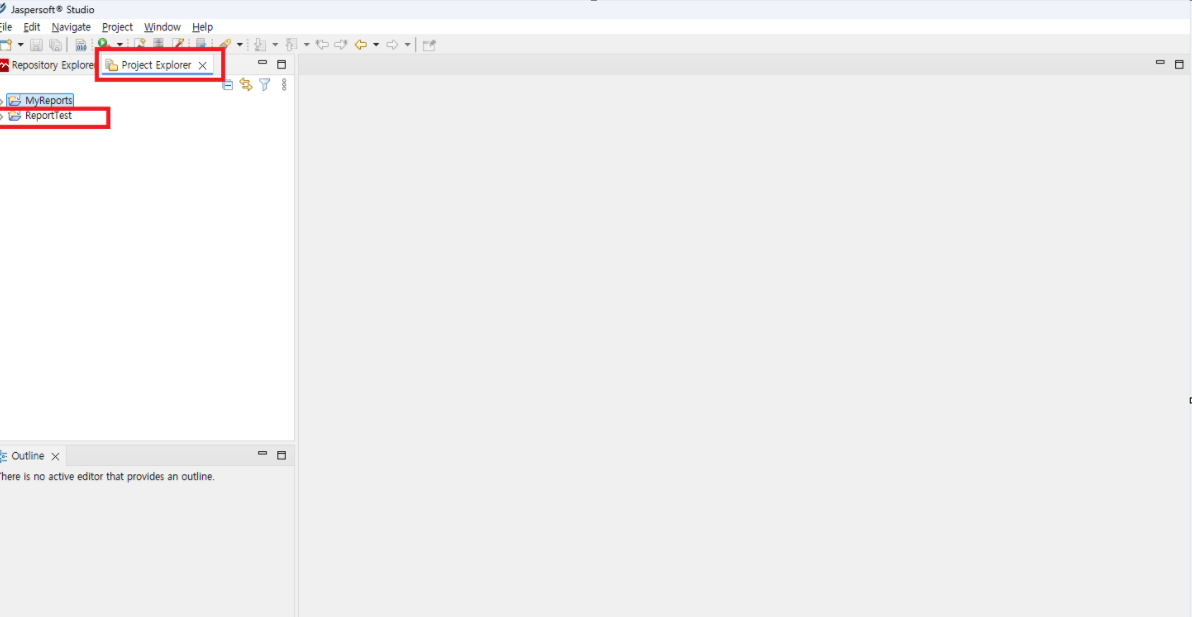
3.Project Explorer -> ReportTest 프로젝트 만들어진거 확인
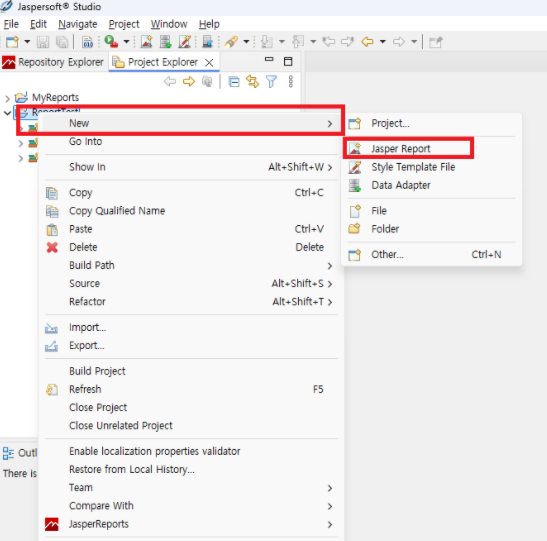
4.ReportTest 우클릭 -> New -> Jasper Report 클릭
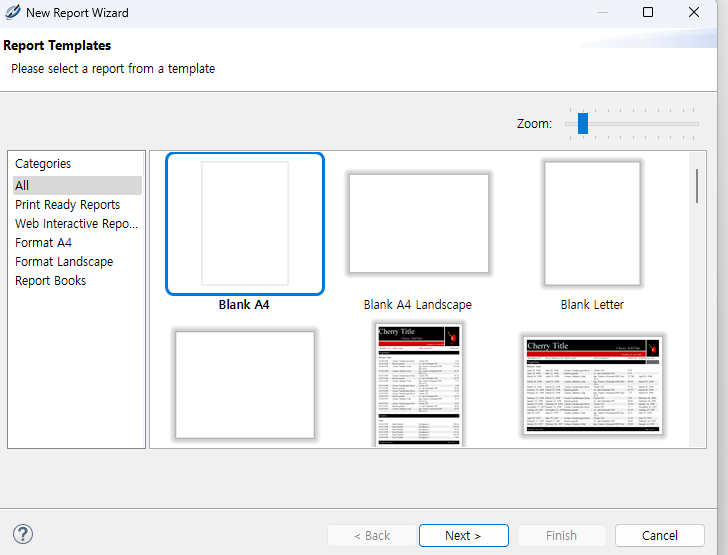
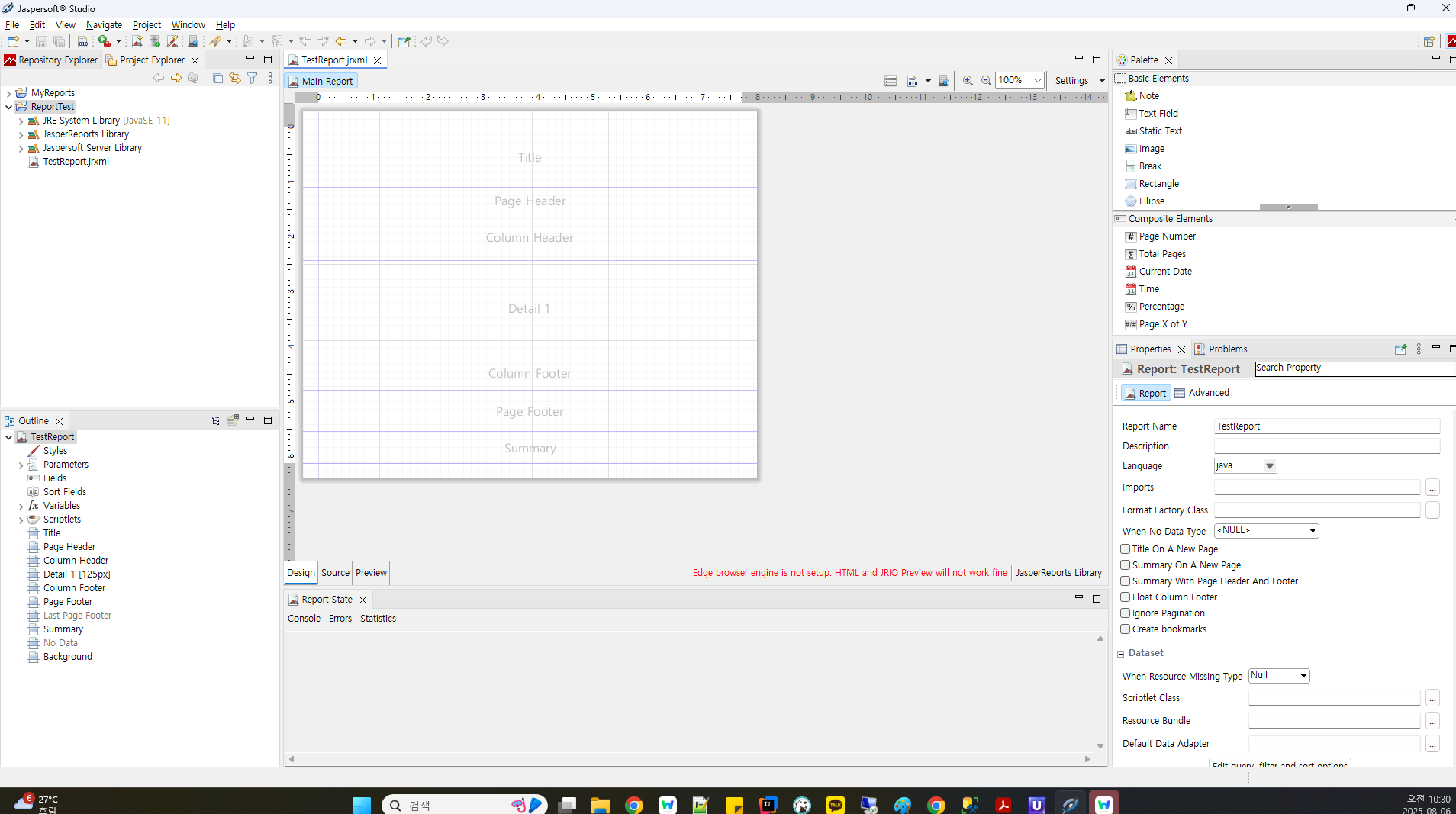
5. Templet (Blank A4) 클릭 -> File Name 설정 (TestReport.jrxml)-> Sample DB ( 제스퍼 제공 샘플 데이터베이스) 클릭 -> 확인 클릭 -> Finish
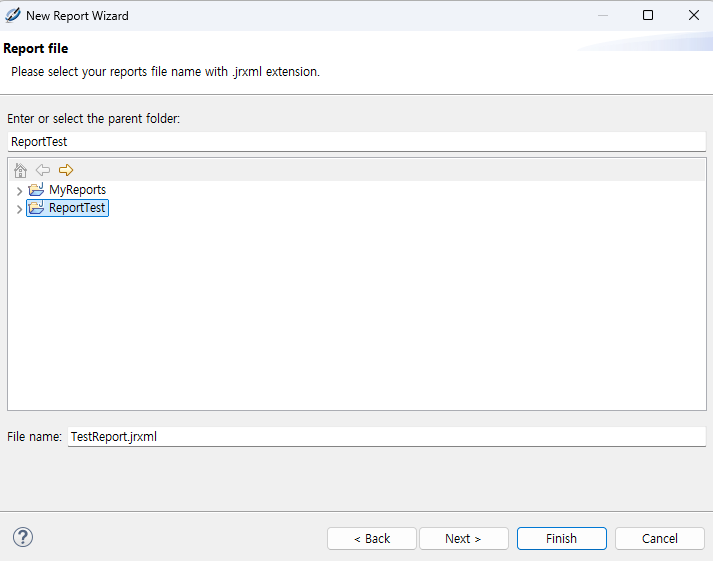
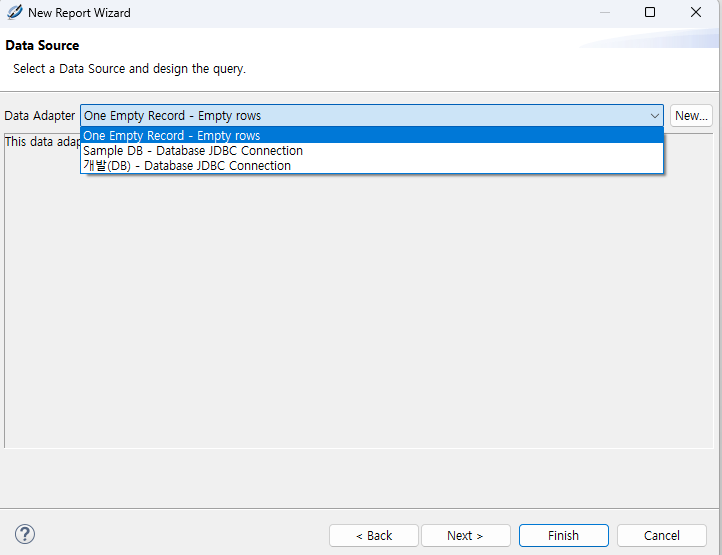

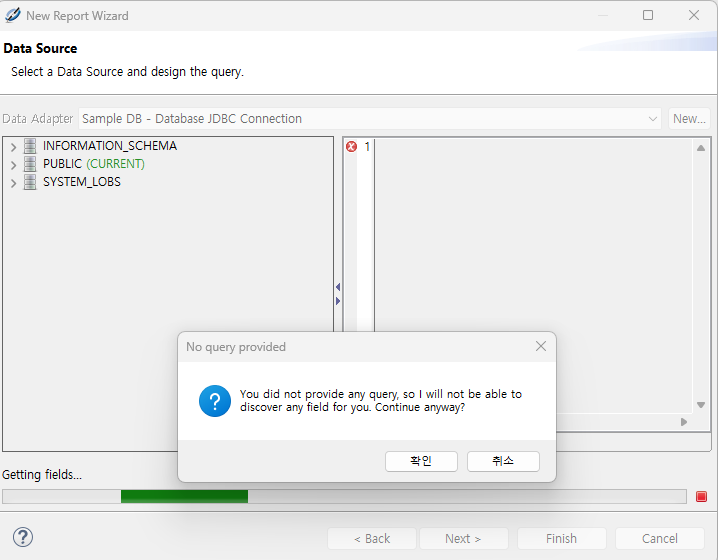
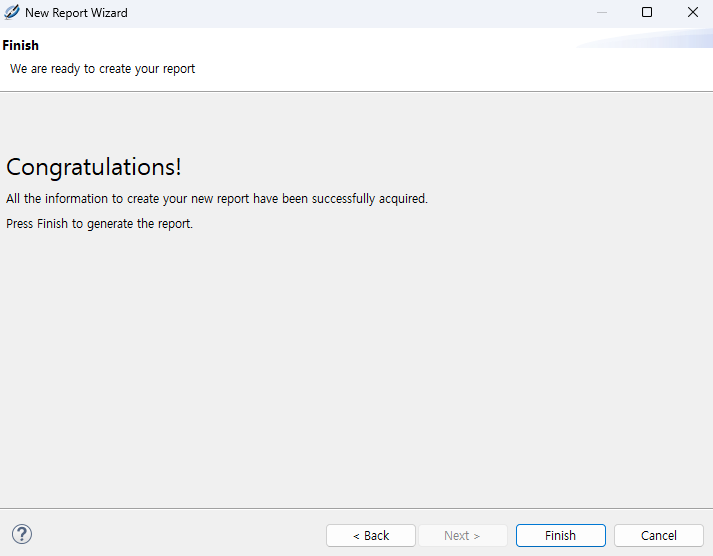
6. 만들어진 jrxml 파일 확인
2025.08.06 - [Report] - [Jaspersoft Studio] Data Adapters DBMS 연결 ClassNotFoundException 해결 (3)
[Jaspersoft Studio] Data Adapters DBMS 연결 ClassNotFoundException 해결 (3)
DBMS에 연결을 해보자 . MSSQL을 사용중이다. 1. Data Adapters 우클릭 -> Create Data Adapter 클릭 2. Database JDBC Connection 클릭 3.JDBC Driver 클릭 후 사용하고 있는 DB Driver 클릭 4. 접속 정보 확인- JDBC Driver(어떤 DB
ycds.tistory.com
2025.08.06 - [Report] - [Jaspersoft Studio] 다운로드 및 툴 접속 (1)
[Jaspersoft Studio] 다운로드 및 툴 접속 (1)
회사에서 Report 툴을 하나 적용하자해서 일부 무료인 Jaspersoft Studio을 선택했다. 1.다운로드 링크 접속https://community.jaspersoft.com/download-jaspersoft/ 2. JaseperSoft community edition (Download Now) 클릭 3. 개인 OS
ycds.tistory.com
반응형
'Report' 카테고리의 다른 글
| [Jaspersoft Studio] Jasper Report - React 연동 (6) (1) | 2025.08.25 |
|---|---|
| [Jaspersoft Studio] Jasper Report InteliJ 연동 Gradle (5) (2) | 2025.08.11 |
| [Jaspersoft Studio] jxrml 파일 생성 및 DB SELECT(4) (3) | 2025.08.11 |
| [Jaspersoft Studio] Data Adapters DBMS 연결 ClassNotFoundException 해결 (3) (4) | 2025.08.06 |
| [Jaspersoft Studio] 다운로드 및 툴 접속 (1) (1) | 2025.08.06 |


