반응형
현재 프로젝트에서 하나의 물리서버에 이러한 내용들이 세팅이 되어있다 .
나는 이 http환경들중 http:aaa.cro.co.kr/ 이 url은 http로 유지를 하고
나머지 swagger,jenkins, / ,factory,tablet 환경은 https로 변경을 하려고한다.
현재 프로젝트 구성은 Nginx(프론트엔드) , Tomcat(백엔드) 웹서버를 사용중이다.
http:/aaa.ako.co.kr:9090/swagger, http:aaa.ako.co.kr:8081/jenkins , http:aaa.cro.co.kr/8080
http:/aaa.ako.co.kr:3000/, http:aaa.ako.co.kr:3000/factory , http:aaa.ako.co.kr:3000/tablet
이전에 https 적용글을 한번 확인해봤으면 좋겠다.
2025.07.10 - [Nginx] - [Nginx] Nginx https 적용
[Nginx] Nginx https 적용
기존 http로 설정을했던 nginx 웹존 http로 설정을했던 nginx 웹서버를 https로 바꾸는 과정이다 . 1. 서비스를 킨 후 작동중이던 nginx 웹서버를 중지 시킨다. cmd로 해도된다 2. nginx.conf 경로에 들어가서 n
ycds.tistory.com
우선은 Nginx에 nginx.conf를 수정해야한다 . 이전글과 같이 https 만을 적용하게되면은 http:aaa.cro.co.kr/도 https로 변경되기 떄문에 해당 url은 우회를 시켜야한다.
1. nginx.conf 수정
worker_processes  1;

events {
    worker_connections  1024;
}

http {
    include       mime.types;
    default_type  application/octet-stream;

    sendfile        on;
    keepalive_timeout  65;

    #################################################
    # 1. mis.panko.co.kr → HTTP 서비스 (포트 8080)
    #################################################
    server {
        listen       8080;
        server_name  aaa.cro.co.kr;

        root   D:/Project_Src/was/nginx-1.24.0/html_mis;
        index  index.html index.htm;

        location / {
            try_files $uri $uri/ /index.html;
        }

        location /api/ {
            proxy_pass         http://127.0.0.1:80;  # cro 백엔드
            proxy_set_header   Host $host;
            proxy_set_header   X-Real-IP $remote_addr;
            proxy_set_header   X-Forwarded-For $proxy_add_x_forwarded_for;
            proxy_set_header   X-Forwarded-Proto $scheme;
        }

        error_page 500 502 503 504 /50x.html;
        location = /50x.html {
            root D:/Project_Src/was/nginx-1.24.0/html_mis;
        }
    }

    #################################################
    # 2. aaa.cro.co.kr → HTTPS 요청 완전 차단
    #################################################
    server {
        listen       443 ssl;
        server_name  aaa.cro.co.kr;

        ssl_certificate      D:/Project_Src/was/nginx-1.24.0/cert/Wildcard.aaa.co.kr_pem.pem;
        ssl_certificate_key  D:/Project_Src/was/nginx-1.24.0/cert/KeyFile_Wildcard.aaa.co.kr_pem.key;
        ssl_protocols        TLSv1.2 TLSv1.3;
        ssl_ciphers          HIGH:!aNULL:!MD5;

        return 444;  # 연결 즉시 차단
    }

    #################################################
    # 2-1. fallback 방지용 default_server → 모든 미지정 도메인 HTTPS 차단
    #################################################
    server {
        listen       443 ssl default_server;
        server_name  _;

        ssl_certificate      D:/Project_Src/was/nginx-1.24.0/cert/Wildcard.panko.co.kr_pem.pem;
        ssl_certificate_key  D:/Project_Src/was/nginx-1.24.0/cert/KeyFile_Wildcard.panko.co.kr_pem.key;
        ssl_protocols        TLSv1.2 TLSv1.3;
        ssl_ciphers          HIGH:!aNULL:!MD5;

        return 444;
    }

    #################################################
    # 3. aaa.ako.co.kr → HTTPS 서비스 (포트 443)
    #################################################
    server {
        listen       443 ssl;
        server_name  aaa.ako.co.kr;

        ssl_certificate      D:/Project_Src/was/nginx-1.24.0/cert/Wildcard.aaa.co.kr_pem.pem;
        ssl_certificate_key  D:/Project_Src/was/nginx-1.24.0/cert/KeyFile_Wildcard.aaa.co.kr_pem.key;
        ssl_protocols        TLSv1.2 TLSv1.3;
        ssl_ciphers          HIGH:!aNULL:!MD5;
        add_header           Strict-Transport-Security "max-age=31536000; includeSubDomains" always;

        root   D:/Project_Src/was/nginx-1.24.0/html;
        index  index.html index.htm;

        location / {
            sub_filter_types text/html application/javascript;
            sub_filter_once  off;
            sub_filter 'http:/aaa.:9090/api/' '/api/';
            try_files $uri $uri/ /index.html;
        }

		#Swagger 설정
        location /api/ {
            proxy_pass         http://127.0.0.1:9090;
            proxy_http_version 1.1;
            proxy_set_header   Upgrade $http_upgrade;
            proxy_set_header   Connection "upgrade";
            proxy_set_header   Host $host;
            proxy_set_header   X-Real-IP $remote_addr;
            proxy_set_header   X-Forwarded-For $proxy_add_x_forwarded_for;
            proxy_set_header   X-Forwarded-Proto $scheme;
        }

		#젠킨스 설정
        location /jenkins/ {
            proxy_pass         http://127.0.0.1:8081/jenkins/;
            proxy_http_version 1.1;
            proxy_set_header   Host $host;
            proxy_set_header   X-Real-IP $remote_addr;
            proxy_set_header   X-Forwarded-For $proxy_add_x_forwarded_for;
            proxy_set_header   X-Forwarded-Proto $scheme;
        }

        error_page 500 502 503 504 /50x.html;
        location = /50x.html {
            root D:/Project_Src/was/nginx-1.24.0/html;
        }
    }
}
2.Jenkins 설정 (url 접속) -> Jenkins 관리 클릭
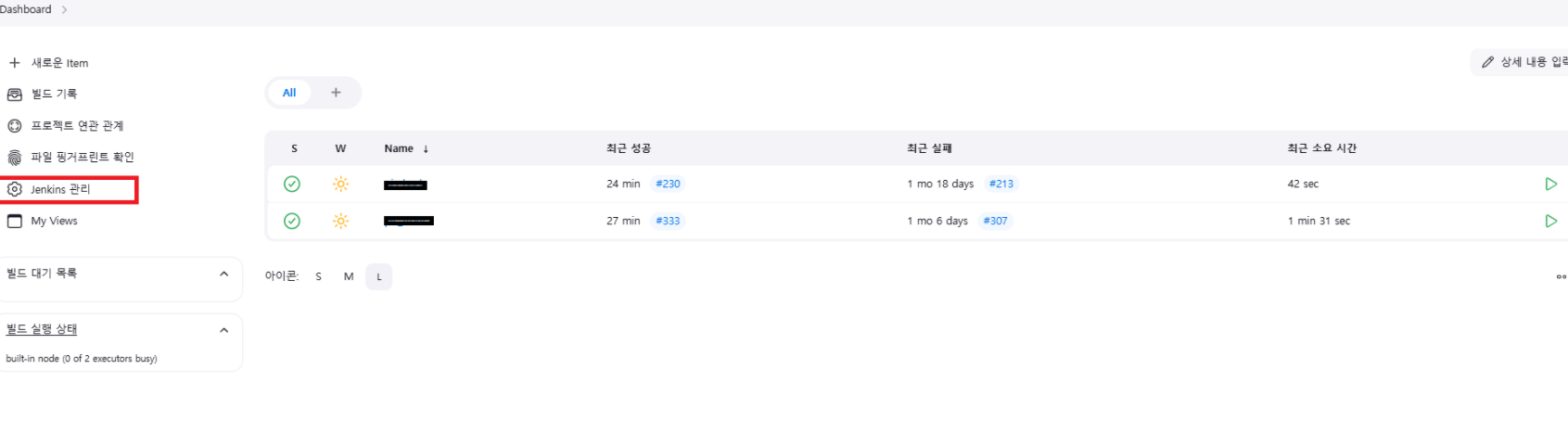
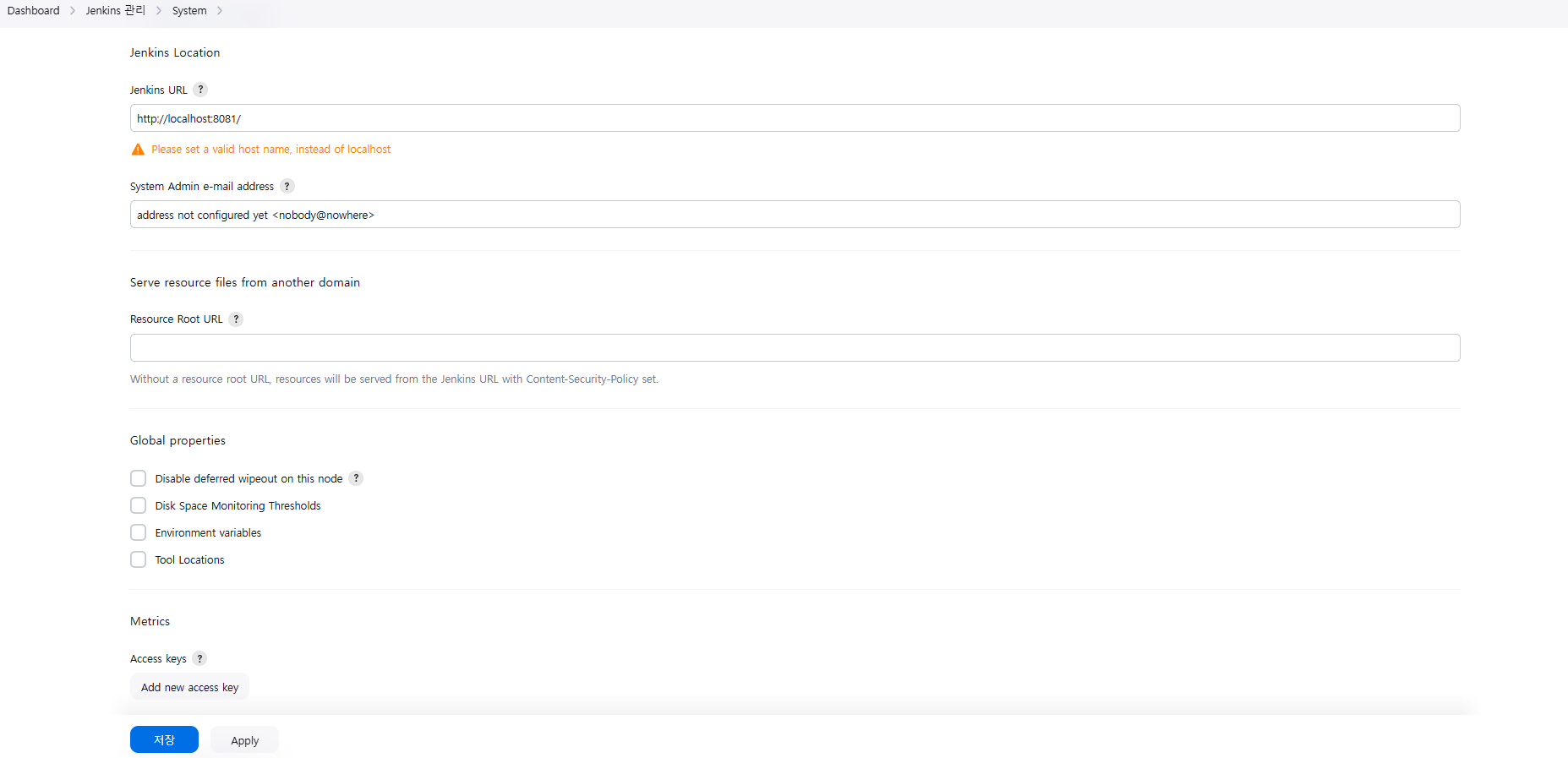
3.System Configuration -> System 클릭

3.Jenkins Location -> Jenkins URL-> https://aaa.ako.co.kr/으로 변경 (변경전 후 이미지 첨부 ) -> 저장버튼 클릭

4. 이후 Jenkins.xml 파일 오픈 수정전 -> 수정 후 xml 소스 첨부. url을 /jenkins로 받을거기 떄문에 prefix 추가
#############수정전
<!--
The MIT License

Copyright (c) 2004-2017, Sun Microsystems, Inc., Kohsuke Kawaguchi, Oleg Nenashev, and other Jenkins contributors

Permission is hereby granted, free of charge, to any person obtaining a copy
of this software and associated documentation files (the "Software"), to deal
in the Software without restriction, including without limitation the rights
to use, copy, modify, merge, publish, distribute, sublicense, and/or sell
copies of the Software, and to permit persons to whom the Software is
furnished to do so, subject to the following conditions:

The above copyright notice and this permission notice shall be included in
all copies or substantial portions of the Software.

THE SOFTWARE IS PROVIDED "AS IS", WITHOUT WARRANTY OF ANY KIND, EXPRESS OR
IMPLIED, INCLUDING BUT NOT LIMITED TO THE WARRANTIES OF MERCHANTABILITY,
FITNESS FOR A PARTICULAR PURPOSE AND NONINFRINGEMENT. IN NO EVENT SHALL THE
AUTHORS OR COPYRIGHT HOLDERS BE LIABLE FOR ANY CLAIM, DAMAGES OR OTHER
LIABILITY, WHETHER IN AN ACTION OF CONTRACT, TORT OR OTHERWISE, ARISING FROM,
OUT OF OR IN CONNECTION WITH THE SOFTWARE OR THE USE OR OTHER DEALINGS IN
THE SOFTWARE.
-->
<!--
  Windows service definition for Jenkins.

  To uninstall, run "jenkins.exe stop" to stop the service, then "jenkins.exe uninstall" to uninstall the service.
  Both commands don't produce any output if the execution is successful.
-->
<service>
  <id>jenkins</id>
  <name>Jenkins</name>
  <description>This service runs Jenkins automation server.</description>
  <env name="JENKINS_HOME" value="%ProgramData%\Jenkins\.jenkins"/>
  <!--
    if you'd like to run Jenkins with a specific version of Java, specify a full path to java.exe.
    The following value assumes that you have java in your PATH.
  -->
  <executable>C:\Program Files\java\jdk-17\\bin\java.exe</executable>
  <arguments>-Xrs -Xmx256m -Dhudson.lifecycle=hudson.lifecycle.WindowsServiceLifecycle -jar "C:\Program Files\Jenkins\jenkins.war" --httpPort=8081 --webroot="%ProgramData%\Jenkins\war"</arguments>
  <!--
    interactive flag causes the empty black Java window to be displayed.
    I'm still debugging this.
  <interactive />
  -->
  <logmode>rotate</logmode>

  <onfailure action="restart"/>

  <!--
    In the case WinSW gets terminated and leaks the process, we want to abort
    these runaway JAR processes on startup to prevent corruption of JENKINS_HOME.
    So this extension is enabled by default.
  -->
  <extensions>
    <!-- This is a sample configuration for the RunawayProcessKiller extension. -->
    <extension enabled="true" className="winsw.Plugins.RunawayProcessKiller.RunawayProcessKillerExtension" id="killOnStartup">
      <pidfile>%ProgramData%\Jenkins\jenkins.pid</pidfile>
      <stopTimeout>10000</stopTimeout>
      <stopParentFirst>false</stopParentFirst>
    </extension>
  </extensions>

  <!-- See the referenced examples for more options -->

</service>


#######################수정 후
<!--
The MIT License

Copyright (c) 2004-2017, Sun Microsystems, Inc., Kohsuke Kawaguchi, Oleg Nenashev, and other Jenkins contributors

Permission is hereby granted, free of charge, to any person obtaining a copy
of this software and associated documentation files (the "Software"), to deal
in the Software without restriction, including without limitation the rights
to use, copy, modify, merge, publish, distribute, sublicense, and/or sell
copies of the Software, and to permit persons to whom the Software is
furnished to do so, subject to the following conditions:

The above copyright notice and this permission notice shall be included in
all copies or substantial portions of the Software.

THE SOFTWARE IS PROVIDED "AS IS", WITHOUT WARRANTY OF ANY KIND, EXPRESS OR
IMPLIED, INCLUDING BUT NOT LIMITED TO THE WARRANTIES OF MERCHANTABILITY,
FITNESS FOR A PARTICULAR PURPOSE AND NONINFRINGEMENT. IN NO EVENT SHALL THE
AUTHORS OR COPYRIGHT HOLDERS BE LIABLE FOR ANY CLAIM, DAMAGES OR OTHER
LIABILITY, WHETHER IN AN ACTION OF CONTRACT, TORT OR OTHERWISE, ARISING FROM,
OUT OF OR IN CONNECTION WITH THE SOFTWARE OR THE USE OR OTHER DEALINGS IN
THE SOFTWARE.
-->
<!--
  Windows service definition for Jenkins.

  To uninstall, run "jenkins.exe stop" to stop the service, then "jenkins.exe uninstall" to uninstall the service.
  Both commands don't produce any output if the execution is successful.
-->
<service>
  <id>jenkins</id>
  <name>Jenkins</name>
  <description>This service runs Jenkins automation server.</description>
  <env name="JENKINS_HOME" value="%ProgramData%\Jenkins\.jenkins"/>
  <!--
    if you'd like to run Jenkins with a specific version of Java, specify a full path to java.exe.
    The following value assumes that you have java in your PATH.
  -->
  <executable>C:\Program Files\java\jdk-17\\bin\java.exe</executable>
  <arguments>
	-Xrs -Xmx256m
	-Dhudson.lifecycle=hudson.lifecycle.WindowsServiceLifecycle
	-jar "C:\Program Files\Jenkins\jenkins.war"
	--httpPort=8081
	--prefix=/jenkins
	--webroot="%ProgramData%\Jenkins\war"
  </arguments>
  <!--
    interactive flag causes the empty black Java window to be displayed.
    I'm still debugging this.
  <interactive />
  -->
  <logmode>rotate</logmode>

  <onfailure action="restart"/>

  <!--
    In the case WinSW gets terminated and leaks the process, we want to abort
    these runaway JAR processes on startup to prevent corruption of JENKINS_HOME.
    So this extension is enabled by default.
  -->
  <extensions>
    <!-- This is a sample configuration for the RunawayProcessKiller extension. -->
    <extension enabled="true" className="winsw.Plugins.RunawayProcessKiller.RunawayProcessKillerExtension" id="killOnStartup">
      <pidfile>%ProgramData%\Jenkins\jenkins.pid</pidfile>
      <stopTimeout>10000</stopTimeout>
      <stopParentFirst>false</stopParentFirst>
    </extension>
  </extensions>

  <!-- See the referenced examples for more options -->

</service>
5.서비스에서 Jenkins 및 Nginx에 서비스를 중지 -> 시작


이후 https 접속이 잘되는지 확인하자 http도 접속이 가능하게 설정을 하였다.
반응형
'Nginx' 카테고리의 다른 글
| [Nginx] Nginx https 적용 (6) | 2025.07.10 |
|---|
